- Viewing the results of a specific promotion - See a promotion's total products sold, revenue, and gross profit.
- Ranking promotions by success factors - Create a list that compares the results of your promotions.
Note that only promotions with the status Ongoing, Finished, or Scheduled (for repeating indefinite promotions) will display results.
Viewing the results of a specific promotion
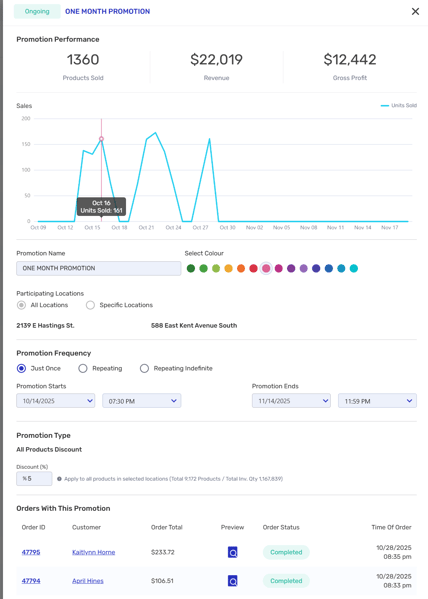
Zoom in on a promotion to see products sold, revenue, and gross profit. You can also view a list of all orders placed with that promotion.
- Go to Promotion > All Promotions.
- Use the search bar to find a promotion by name. Tip: if you don't know the name, select List view and use the filters to narrow down your search.
- If you're in Calendar view, click on any promotion to bring up a quick view of key metrics, including Products Sold, Revenue, and Gross Profit.
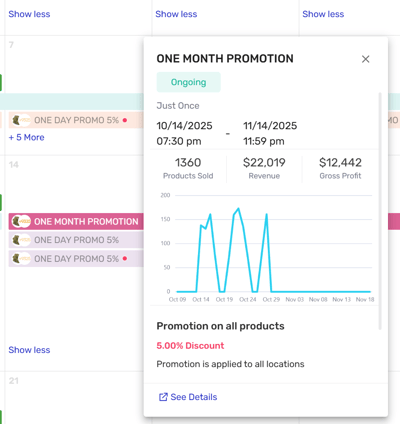
Click See Details to view the full promotion details panel.
If you're in List view, click the promotion to open this same panel. This will allow you to review the promotion's settings, view sales at any point in time, and see orders placed under the promotion.
Ranking promotions by success factors
Compare your promotions by listing them according to key criteria:
- Orders placed
- Products sold
- Revenue generated
- Gross profit generated
To create your list:
- Go to Promotion > All Promotions.
- At the top of the page, select List view.
- If desired, filter the list results to show only promotions of a certain Frequency, Status, Start date, or End date and click Apply.
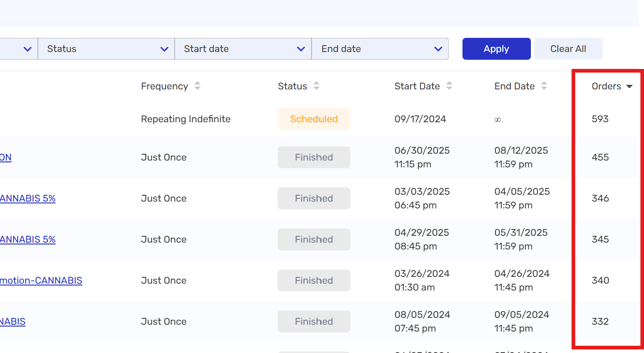
- Use the arrows at the top of a column to sort results. In the example below, promotions are sorted from most to fewest orders placed.