
This feature is being released gradually and may not yet be available in your account.
If you don’t see it, please reach out to your Customer Success Manager to learn whether it's a good fit for you.
In Breadstack's Product module, you control the product information that appears on your online storefront.
Product information can either be drawn from your POS, or you can manually enter it in Breadstack. This includes the following fields: Name, Descriptions (long and short), Images, Specifications (including for variations), GTIN and UPC, and Classification (Category and Tags).
In this article, you'll learn more about these options and how to switch between them.
- Understanding your source options (POS sync vs. manual entry)
- Switching between sources
- Setting the default source for new products
Understanding your source options
Option 1: POS sync (Cova or Greenline)
This means that every few seconds, Breadstack will update the product's data based on what you have stored in Cova or Greenline. If you make a change in your POS, it will be reflected in Breadstack and on your storefront shortly.
You'll be able to this view product information in Breadstack, but it will be read-only.
Use this option if you prefer to use your POS as your source of truth for up-to-date product information. Learn more about preparing products in your POS for sync.
Option 2: Manual entry
This option disconnects Breadstack product data from your POS. You gain the ability to edit product information directly in Breadstack.
Note that edits you make to product details in Breadstack will not sync back to your POS. You will need to manually update this information in both systems in order to avoid discrepancies.
Switching between sources
You can switch your source of product information at any time, either for an individual product or for all products.
What happens when you switch?
When you switch from Cova or Greenline to Manual entry, products will retain the information from the most recent POS sync event (these occur automatically every few seconds). You can then edit this information in Breadstack as desired.
When you switch the other way - from Manual entry to a POS source - information synced from Cova or Greenline will override any manual edits you made previously.
Switching the source for an individual product
- Go to Products and select the product you would like to edit.
- In the dropdown, select either Cova/Greenline or Manual entry as your source.
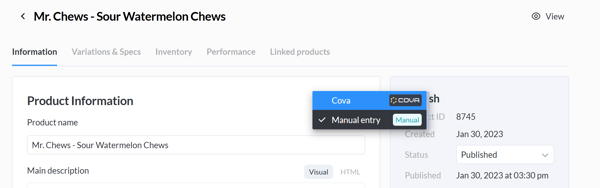
If you're switching to a POS source, you may have to wait a few seconds while the sync takes place. When it's complete, you'll see product details that match what is currently in Cova or Greenline.
If you're switching to manual entry, you'll now be able to edit the fields that were previously read-only.
Switching the source for multiple products
- Go to Settings > POS.
- Under Product Source, you'll see an overview of how many products are currently deriving their data from each source (your POS or manual entry). Click the arrow on the source you want to switch.
In the example below, imagine that you're trying to switch all products currently sourcing from Cova over to Manual entry.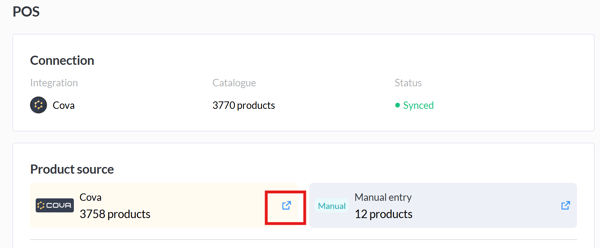
- This will take you to the Products module, where you'll see a list of all the products currently using that source. Select all (or several) and click Switch product source to [your preferred source] at the bottom of the screen.
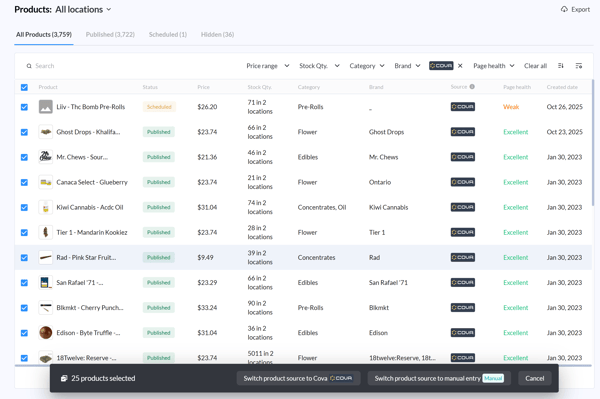
- You'll see a confirmation that the products' source was changed. When you open those products in the Products module, you'll see the following changes:
- If you're switching to a POS source - You may have to wait a few seconds while the sync takes place. When it's complete, you'll see product details that match what is currently in Cova or Greenline.
- If you're switching to manual entry - You'll now be able to edit the fields that were previously read-only.
Setting the default source for new products
Make sure newly added products use your preferred data source by default.
- Go to Settings > POS.
- Under Product Source, choose a source for new products.
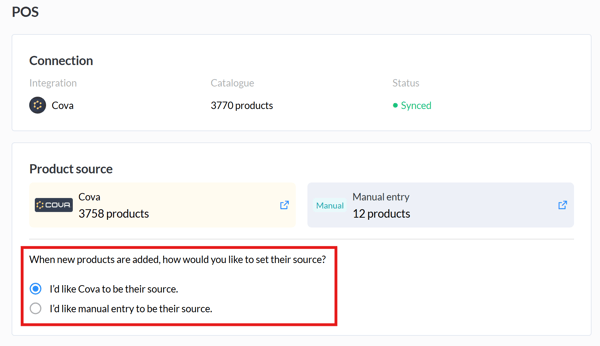
- Click Save at the bottom of the screen. You'll see a confirmation that your change was successful.