
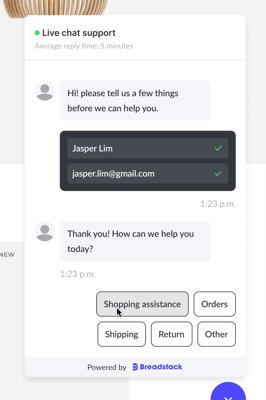
When customers start a chat, they can choose the department most relevant to their question and be routed to an agent from that department. For example, you might have departments dedicated to Order Tracking or Shipping & Returns.
This ensures your customers are connected with the most knowledgeable support straight away.
Creating a new department
-
Visit Settings > Service Depts and click Add department.
- Enter a Department name that is clear and customer-friendly.
- Set Department hours. By default, the department's hours will be set to match your general chat service hours. To set custom hours:
- Uncheck the box next to Same as chat service hours.
-
For each day of the week, set the department's opening and closing times. Uncheck any days that the department is offline.

Note: If a customer starts a chat outside a department's operating hours, he or she will not see or be able to select that department.
- Under Department members, add at least one agent to your department by searching for his or her name. Note that you can only add agents who have access to live chat. Agents can work in multiple departments.
- Click Save.
Editing a department
To make changes to a department, visit Settings > Service Departments. You'll see a list of all your current departments. Click any department to edit its name, hours, or team composition.
Managing an agent's assigned departments
Agents can work in more than one department. You can view a specific agent's profile and add or remove departments from their workload.
- Go to Settings > Users and click the name of the agent you want to manage. A page will open with the user's permissions and details.
- Under Service department, select the departments you would like this agent to participate in. Click Save.
