
When stock levels in Cova or Greenline reach the threshold, customers will see that product marked as "Out of stock" on your website.
You can set thresholds by category or sub-category. To set a new threshold:
- Go to Settings > Locations and click the name of the store for which you would like to set a threshold.
- Scroll to the bottom of the page. Under Item quantity threshold, click Manage thresholds.
- You'll see a list of the product categories and subcategories currently in place for your online store. Where desired, input the stock level at which you want products to become unavailable for online purchase.
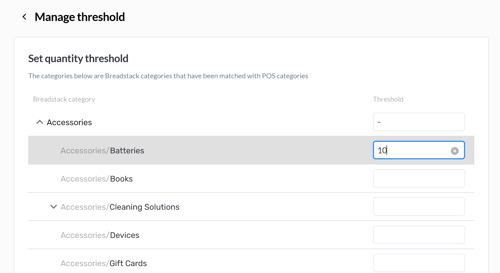
Note that setting a threshold for an entire category will overwrite any thresholds you may have set for the subcategories within it. - Click Save at the bottom of the screen.
To remove a threshold, go back to Manage thresholds and delete threshold(s) as desired. Click Save.