
Linked products include up-sells and cross-sells. This article covers the difference between the two, best practices for selecting them, and a step-by-step guide to setting them up for any product in your Breadstack catalogue.
What are up-sells?
What are cross-sells?
Setting up-sells and cross-sells
What are up-sells?
Up-sells are alternative products that a customer might prefer instead of the item they’re viewing. You can use them to gently encourage customers to switch to a higher-value or more premium option
On your website, upsells appear on product pages under a title such as "You may also like...". 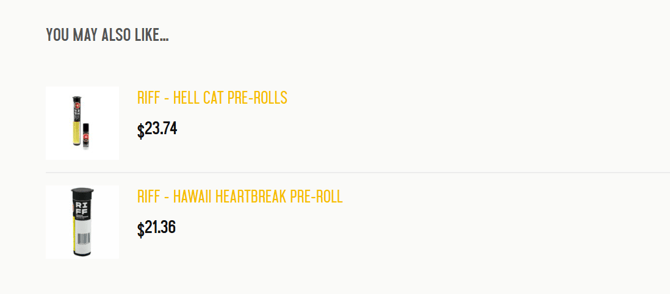
How to choose up-sells
-
Match the customer’s intent
Offer alternatives that meet the same need (e.g., same format, same THC range). -
Prioritize higher value
Feature products with higher price points or better margins. Example: If a customer views a 1g pre-roll, suggest a 3-pack from the same brand. -
Use brand affinity
If customers clicked for a specific brand, suggest other premium items from the same brand.
What are cross-sells?
Cross-sells are complementary products that pair well with what the customer is already buying, such as accessories or experience-enhancing items.
On your website, cross-sells appear in cart view. Below, see an example of what this section may look like on a cart page.
How to choose cross-sells
- Think in "bundles"
Set cross-sells that help shoppers complete the experience. Example: If a customer adds a pre-roll, suggest rolling papers or a lighter. - Choose impulse-friendly items
Tempt shoppers with relatively inexpensive accessories or fun add-ons. - Consider fast-moving accessories
Items with consistently low stockouts work well.
Setting a product's up-sells or cross-sells
Note that you'll be able to set linked products regardless of whether you have chosen to sync product information from your POS. This is a Breadstack-only feature with no equivalent in your POS.
- Go to Products > All Products and open the product you would like to edit.
- Navigate to the Linked products. You'll find this section either in the top menu bar, or at the bottom of the page.
- Search for products to up-sell or cross-sell, (Note that you may need to hit Enter after typing your search terms.)
- Select one or more search results and click Save. You'll see a confirmation that your linked products were updated successfully.
- Make sure your linked products appear as desired by checking the product page on your website (for an up-sell) or adding the item to cart (for a cross-sell).