---
title: Setting a driver's working hours
description: Learn how to set up shifts for your drivers, schedule special hours, and block off their holiday time.
---
[Skip to content](https://helpcentre.breadstack.com/setting-a-drivers-working-hours#main-content)
[](https://breadstack.com)
Open main navigation
Close main navigation
- [Sign in to Breadstack](https://bs.app.breadstack.io/login)
[Sign in to Breadstack](https://bs.app.breadstack.io/login)
How can we help you?
- There are no suggestions because the search field is empty.
1. [Breadstack Help Centre](https://helpcentre.breadstack.com/?hsLang=en-ca)
2. [Breadstack Delivery (CanFleet)](https://helpcentre.breadstack.com/breadstack-delivery-canfleet?hsLang=en-ca)
3. [Breadstack Delivery module](https://helpcentre.breadstack.com/breadstack-delivery-canfleet?hsLang=en-ca#breadstack-delivery-module)
# Setting a driver's working hours
## Customize the hours during which a driver can receive auto-assigned tasks. Schedule time off or special hours for holidays.
If you have turned on [task auto-assignment](https://helpcentre.breadstack.com/turning-task-auto-assignment-on-or-off?hsLang=en-ca), you can create shifts for each of your drivers to ensure they only receive auto-assigned tasks when they are working.
Note that you can still [manually assign tasks](https://helpcentre.breadstack.com/assigning-a-task-to-a-driver?hsLang=en-ca) to your drivers outside of their shifts.
1. In Breadstack Delivery, go to **Settings > Drivers **and click on the driver whose shift you want to set.
2. In the driver information panel, click **Shift schedule.**
3. Turn on the **Enable shift schedule **toggle. You'll now see the option to set the driver's [**Regular schedule **](https://helpcentre.breadstack.com/setting-a-drivers-working-hours#regular-schedule)and [**Special hours**](https://helpcentre.breadstack.com/setting-a-drivers-working-hours#special-hours).
#### Regular schedule
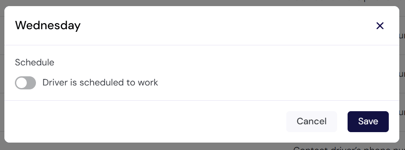
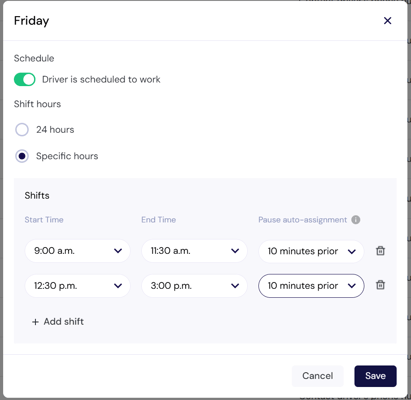
This is the driver's default work schedule. Click on each day of the week to set the driver's hours for that day.
- For the days that your driver doesn't work, turn off the **Driver is scheduled to work** toggle.
- If you want the driver to be available for auto-assigned tasks the entire day, set the **Shift hours** to 24 hours.
- If you are setting specific hours for your driver, and you want to block them from receiving new auto-assigned tasks before the end of the shift, you can set a cutoff time under **Pause auto-assignment**.
#### Special hours
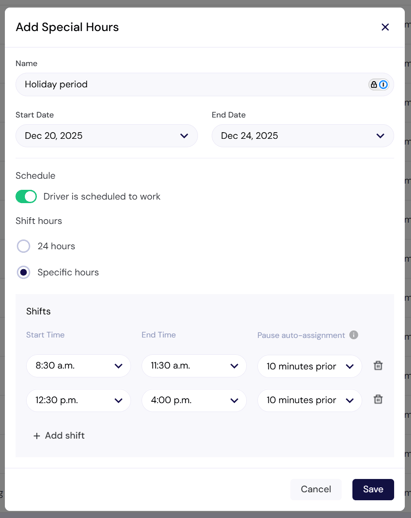
If your driver will be working adjusted hours on a specific date or date range, you can set that up here.
- Note that if you set a date range, the shifts you create will apply to all days included in that range.
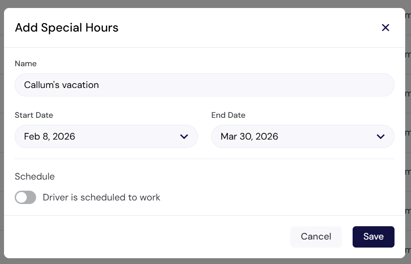
- If your driver is taking time off, you can use Special hours to set that up. Select a Start Date and End Date, then turn off the **Driver is scheduled to work **toggle.
- [Getting started](https://helpcentre.breadstack.com/getting-started?hsLang=en-ca)
- [Online Store module](https://helpcentre.breadstack.com/online-store-module?hsLang=en-ca#main-content)
- [Promotions](https://helpcentre.breadstack.com/online-store-module?hsLang=en-ca#promotions)
- [Orders](https://helpcentre.breadstack.com/online-store-module?hsLang=en-ca#orders)
- [Products](https://helpcentre.breadstack.com/online-store-module?hsLang=en-ca#products)
- [Insights](https://helpcentre.breadstack.com/online-store-module?hsLang=en-ca#insights)
- [Service module](https://helpcentre.breadstack.com/service-module?hsLang=en-ca#main-content)
- [Service](https://helpcentre.breadstack.com/service-module?hsLang=en-ca#service)
- [Settings module](https://helpcentre.breadstack.com/settings-module?hsLang=en-ca#main-content)
- [Data](https://helpcentre.breadstack.com/settings-module?hsLang=en-ca#data)
- [Channels](https://helpcentre.breadstack.com/settings-module?hsLang=en-ca#channels)
- [Team](https://helpcentre.breadstack.com/settings-module?hsLang=en-ca#team)
- [Operation](https://helpcentre.breadstack.com/settings-module?hsLang=en-ca#operation)
- [Breadstack Delivery (CanFleet)](https://helpcentre.breadstack.com/breadstack-delivery-canfleet?hsLang=en-ca#main-content)
- [Breadstack Delivery module](https://helpcentre.breadstack.com/breadstack-delivery-canfleet?hsLang=en-ca#breadstack-delivery-module)
- [CanFleet Driver App](https://helpcentre.breadstack.com/breadstack-delivery-canfleet?hsLang=en-ca#canfleet-driver-app)
- [Breadstack OMS App](https://helpcentre.breadstack.com/breadstack-oms-app?hsLang=en-ca)
- [Integrations](https://helpcentre.breadstack.com/integrations?hsLang=en-ca#main-content)
- [Integrating a payment provider](https://helpcentre.breadstack.com/integrations?hsLang=en-ca#integrating-a-payment-provider)
- [Integrating a shipping or delivery partner](https://helpcentre.breadstack.com/integrations?hsLang=en-ca#integrating-a-shipping-or-delivery-partner)
- [Website editing guides](https://helpcentre.breadstack.com/website-editing-guides?hsLang=en-ca)
[](http://breadstack.com)
[mailto:email@email.com](mailto:email@email.com)
Copyright © 2026, Breadstack