
On your website, categories and subcategories help customers find their way to the products they're interested in. Categories are the highest level of organization and populate your navigation menu bar. Subcategories fall within categories, often as a drop-down.

Why match categories?
Categories you create in Cova or Greenline won't be visible on your website until you have matched them to a corresponding category in Breadstack. In other words, although customers will be able to find the products contained in those categories by searching your website, they won't be able to find them via your menu navigation.
Matching a new category
If you've added a new product category in Cova or Greenline, follow these steps to map it in Breadstack.
- Go to Settings > POS and click on the store you want to edit.
- You'll see all your POS categories in the left-hand column. New, unmapped categories will be designated by a red dot.
- In the middle column, select a website category to which you want to match the POS category.
If a website category includes subcategories, you'll see an arrow next to it. Click to view available subcategories. In this example, the POS category Batteries is being matched to Accessories/Batteries.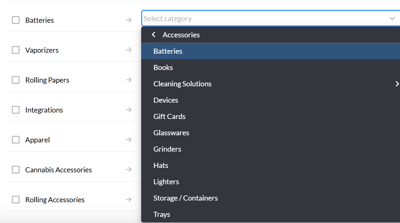
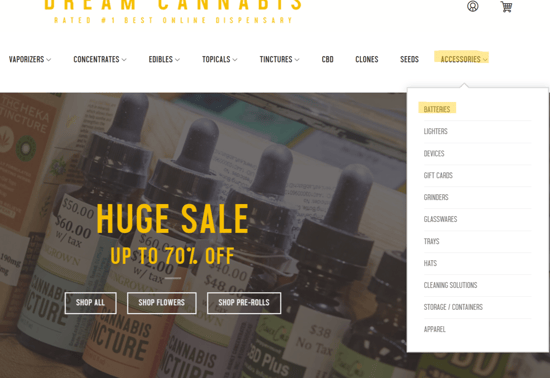
- When you're ready, click Save at the bottom of the screen. Refresh your website to ensure you can see the updates to your menu.