By connecting Moneris to your Breadstack store, you can ensure that customers' online credit card payments are routed correctly and securely. Follow these steps to set up the integration.
Does your store use Moneris 3-D Secure? This integration process is slightly different. Please see Integrating Breadstack with Moneris 3-D Secure.
Step 1: In your WooCommerce store admin environment
- Go to Plugins and install the latest version of the Breadstack Credit Card Payment Gateway (Payfirma) v2 plugin for your store.
- Navigate to WooCommerce Settings > Payment. You should now see Moneris listed as a payment option. Click Manage to open it.
- You'll see a number of options here. To ensure Moneris is functional on your website, you must:
- Click the Enable checkbox.
- Input the BS API Key (this will be provided by Breadstack Customer Support).
-
- (Optional) Customize the Title and Description that customers see at checkout.
Step 2: In your Moneris account
Note down two pieces of information (you'll need them for the next step): your Store ID and API Token. Follow Moneris' instructions to retrieve each:
- Get your Moneris Store ID.
- Get your Moneris API Token (see "Obtaining..." near the bottom of the page).
Step 3: In your Breadstack workspace
- Go to Settings > Integrations. Find and select Moneris to open the integration page.
- Under Connections, click Connect to a location. This will open a popup where you must select the store location you wish to connect, then provide your Moneris Store ID and API Token.
Leave the Checkout ID field blank (this is only for integrations with Moneris 3-D Secure).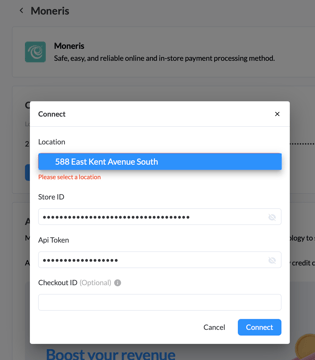
- Click Connect. If the integration was successful, Moneris will show as "Enabled" for your store.
If you see an error message, first double check that your credentials are free of typos, and that the Breadstack Credit Card Payment Gateway (Payfirma) v2 plugin is enabled in WooCommerce.
Update or turn off your Moneris integration
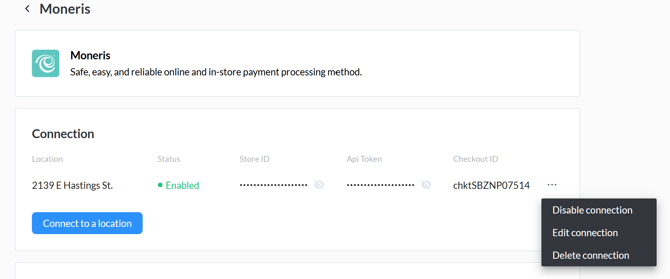
You can edit your integration in Settings > Integrations > Moneris. Click the three dots next to the store connection you wish to edit.
This will open a menu where you can:
- Edit connection - Update your Moneris Store ID or API Token credentials if they change;
- Disable connection - Turn off Moneris as a payment method without losing the credentials you saved;
- Delete connection - Remove the integration permanently, along with any stored credentials.