---
title: Integrating Breadstack with Canada Post
description: Canada Post is a third-party mail and postal delivery service used to ship customer orders. By integrating Breadstack with Canada Post, you can fulfill mail orders directly from Breadstack.
---
[Skip to content](https://helpcentre.breadstack.com/integrating-breadstack-with-canada-post#main-content)
[](https://breadstack.com)
Open main navigation
Close main navigation
- [Sign in to Breadstack](https://bs.app.breadstack.io/login)
[Sign in to Breadstack](https://bs.app.breadstack.io/login)
How can we help you?
- There are no suggestions because the search field is empty.
1. [Breadstack Help Centre](https://helpcentre.breadstack.com/?hsLang=en-ca)
2. [Integrations](https://helpcentre.breadstack.com/integrations?hsLang=en-ca)
3. [Integrating a shipping or delivery partner](https://helpcentre.breadstack.com/integrations?hsLang=en-ca#integrating-a-shipping-or-delivery-partner)
# Integrating Breadstack with Canada Post
## With Canada Post, you can fulfill mail orders directly from Breadstack without relying on external shipping tools.
This article explains how to set up the integration, configure mail order shipping options, understand delivery notifications, and migrate from ShipStation if applicable.
- [Setting up the integration](https://helpcentre.breadstack.com/integrating-breadstack-with-canada-post#setting-up-integration)
- [Mail order shipping options](https://helpcentre.breadstack.com/integrating-breadstack-with-canada-post#mail-order-shipping-options)
- [Delivery notifications and tracking](https://helpcentre.breadstack.com/integrating-breadstack-with-canada-post#notifications-tracking)
---
### Setting up the integration
To connect Breadstack with Canada Post, you’ll need to retrieve your Canada Post credentials and enter them in Breadstack.
#### Step 1: Find your Canada Post credentials
Before configuring the integration, gather the following information from your Canada Post account: your Customer Number, API Key Username, API Key Password, and (if applicable) your Contract ID. Here's where to find each one:
##### Customer Number
You can find your Customer Number in the Canada Post dashboard.
> *Insert screenshot: Canada Post dashboard showing Customer Number*
##### API Key Username and API Key Password
These credentials are generated through the Canada Post Developer Portal.
1. Sign in to the [Canada Post Developer Portal](https://www.canadapost-postescanada.ca/information/app/drc/home)
2. Generate or locate your **production API credentials**.
3. Copy the **API Key Username** and **API Key Password**.
##### Contract ID (optional)
If you have a Canada Post contract, your Contract ID can also be found in the Developer Portal.
This determines how shipping fees are charged when a waybill is created, based on your agreement with Canada Post.
---
#### Step 2: Configure Canada Post in Breadstack
**⚠️ Important note for ShipStation users**
Enabling the Canada Post integration automatically disables the ShipStation integration. Only one can be active at a time.
Read our [recommended migration steps](https://helpcentre.breadstack.com/integrating-breadstack-with-canada-post#migrating-from-shipstation) before continuing.
Once you have your credentials:
1. In Breadstack, go to **Settings → Integrations → Canada Post**.
2. Enable the Canada Post integration.
3. Enter the following details:
- API Key Username
- API Key Password
- Customer Number
- Contract ID (optional)
4. **Save** your changes.
---
### Mail order shipping options
By default, Breadstack supports two mail order shipping options when using Canada Post:
- **Flat rate shipping**
- **Free shipping**
These options:
- Ship orders via Canada Post
- Do **not** require any Canada Post plugin or extension on your storefront
- Only require the Canada Post integration to be enabled in Breadstack
#### Using additional Canada Post shipping options
If you use additional shipping options provided by Canada Post (for example, via a Canada Post storefront plugin), customers can select those options at checkout.
Orders placed with these shipping methods can still be fulfilled in Breadstack in the same way as Flat rate or Free shipping orders.
---
### Delivery notifications and tracking
Once Canada Post receives the shipment details:
- The customer receives a **confirmation email** containing tracking information.
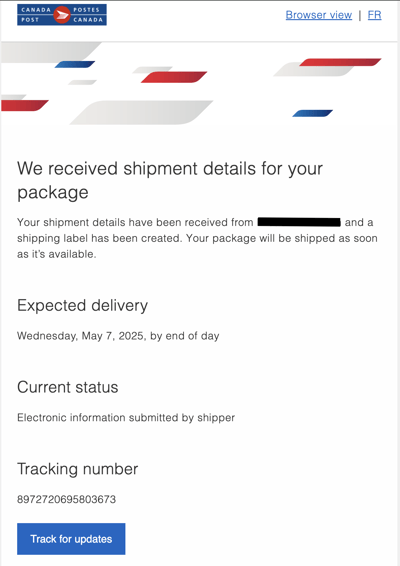
- The **Track for updates** link in the email directs the customer to a Canada Post tracking page with real-time delivery status.
Canada Post also offers free automatic tracking notifications. For more information, see Canada Post’s documentation:[**Get delivery notifications about your shipped packages**](https://www.canadapost-postescanada.ca/cpc/en/support/kb/tracking/delivery-notifications.page?)
---
### Migrating from ShipStation to a direct Canada Post integration
If you are switching from ShipStation to the direct Canada Post integration:
- Waybills created using **ShipStation cannot be voided** through the Canada Post integration.
- Waybills created using **Canada Post cannot be voided** through ShipStation.
#### Recommended migration steps
Before enabling the Canada Post integration:
- Complete or void any existing mail orders created through ShipStation.
- Then enable the Canada Post integration in Breadstack.
All existing Breadstack mail order workflows are fully supported after migration, with no additional configuration required.
- [Getting started](https://helpcentre.breadstack.com/getting-started?hsLang=en-ca)
- [Online Store module](https://helpcentre.breadstack.com/online-store-module?hsLang=en-ca#main-content)
- [Promotions](https://helpcentre.breadstack.com/online-store-module?hsLang=en-ca#promotions)
- [Orders](https://helpcentre.breadstack.com/online-store-module?hsLang=en-ca#orders)
- [Products](https://helpcentre.breadstack.com/online-store-module?hsLang=en-ca#products)
- [Insights](https://helpcentre.breadstack.com/online-store-module?hsLang=en-ca#insights)
- [Service module](https://helpcentre.breadstack.com/service-module?hsLang=en-ca#main-content)
- [Service](https://helpcentre.breadstack.com/service-module?hsLang=en-ca#service)
- [Settings module](https://helpcentre.breadstack.com/settings-module?hsLang=en-ca#main-content)
- [Data](https://helpcentre.breadstack.com/settings-module?hsLang=en-ca#data)
- [Channels](https://helpcentre.breadstack.com/settings-module?hsLang=en-ca#channels)
- [Team](https://helpcentre.breadstack.com/settings-module?hsLang=en-ca#team)
- [Operation](https://helpcentre.breadstack.com/settings-module?hsLang=en-ca#operation)
- [Breadstack Delivery (CanFleet)](https://helpcentre.breadstack.com/breadstack-delivery-canfleet?hsLang=en-ca#main-content)
- [Breadstack Delivery module](https://helpcentre.breadstack.com/breadstack-delivery-canfleet?hsLang=en-ca#breadstack-delivery-module)
- [CanFleet Driver App](https://helpcentre.breadstack.com/breadstack-delivery-canfleet?hsLang=en-ca#canfleet-driver-app)
- [Breadstack OMS App](https://helpcentre.breadstack.com/breadstack-oms-app?hsLang=en-ca)
- [Integrations](https://helpcentre.breadstack.com/integrations?hsLang=en-ca#main-content)
- [Integrating a payment provider](https://helpcentre.breadstack.com/integrations?hsLang=en-ca#integrating-a-payment-provider)
- [Integrating a shipping or delivery partner](https://helpcentre.breadstack.com/integrations?hsLang=en-ca#integrating-a-shipping-or-delivery-partner)
- [Website editing guides](https://helpcentre.breadstack.com/website-editing-guides?hsLang=en-ca)
[](http://breadstack.com)
[mailto:email@email.com](mailto:email@email.com)
Copyright © 2026, Breadstack