---
title: Integrating Aeropay with Breadstack
description: Connect your Breadstack store to Aeropay so customers can quickly and securely pay for their orders via online bank transfer.
---
[Skip to content](https://helpcentre.breadstack.com/integrating-aeropay-with-breadstack#main-content)
[](https://breadstack.com)
Open main navigation
Close main navigation
- [Sign in to Breadstack](https://bs.app.breadstack.io/login)
[Sign in to Breadstack](https://bs.app.breadstack.io/login)
How can we help you?
- There are no suggestions because the search field is empty.
1. [Breadstack Help Centre](https://helpcentre.breadstack.com/?hsLang=en-ca)
2. [Integrations](https://helpcentre.breadstack.com/integrations?hsLang=en-ca)
3. [Integrating a payment provider](https://helpcentre.breadstack.com/integrations?hsLang=en-ca#integrating-a-payment-provider)
# Integrating Aeropay with Breadstack
## Aeropay lets customers quickly and easily pay for their orders online via direct bank transfer. Here's how to link it to your Breadstack store.
Aeropay is a third-party payment service that enables fast, easy, and secure online bank transfers. Offering Aeropay as a payment method at checkout gives your customers an easy alternative to paying by card.
Here's how to connect Aeropay to your Breadstack store.
### Step 1: In your WooCommerce store admin environment
1. Go to **Plugins** and install the latest version of the *Breadstack Aeropay Integration *plugin for your store.
2. Navigate to **WooCommerce Settings \> Payment**. You should now see Aeropay listed as a payment option. Click **Manage ** to open it.
3. You'll see a number of options here. To ensure Aeropay is functional on your website, you must:
1. Click the **Enable** checkbox.
2. Input the **BS API Key** (this will be provided by Breadstack Customer Support).
3. (Optional) Customize the **Title** and **Description** that customers see at checkout.
### Step 2: In your Aeropay account
Note down four pieces of information (you'll need them for the next step):
- **Merchant ID** and **Location ID** - Find these in your Aeropay merchant account, in the Locations tab next to the location you wish to connect. See [Aeropay's guide](https://help.aeropay.com/a-8-merchant-portal-location-tab#Viewing-locations) to finding location details.
- **API key** and **API secret** - These may have been provided to you during Aeropay onboarding. If not, please reach out to Aeropay support.
### Step 3: In your Breadstack workspace
1. Go to **Settings \> Integrations**. Find and select **Aeropay** to open the integration page.
2. Click **Connect**. This will open a popup where you must select a store location, then provide your Location ID, Merchant ID, API key, and API secret.
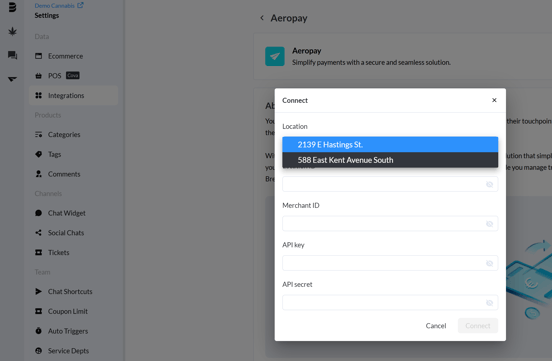
3. Click **Connect**. If the integration was successful, Aeropay will show as "Enabled" for your store.
If you see an error message, first double check that your credentials are free of typos, and that the *Breadstack Aeroplay Integration* plugin is enabled in WooCommerce.
### The customer experience
Note that the first time a customer pays with Aeropay, they will be asked to log in to your storefront. They will then be asked to link a bank account by selecting their bank from a list and logging in.
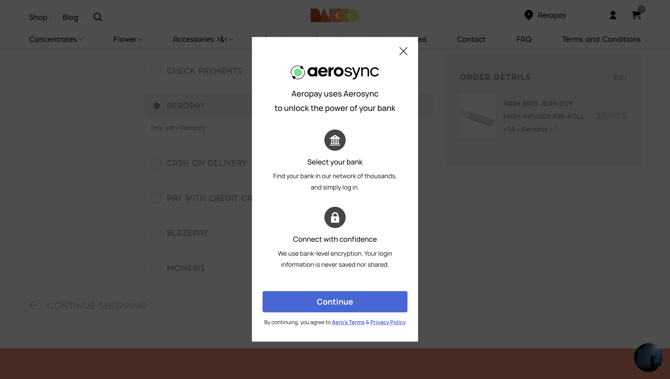
For subsequent orders, the customer won't need to provide any payment details.
### Update or turn off your Aeropay integration
You can edit your integration in **Settings \> Integrations \> Aeropay**. Click the three dots next to the store connection you wish to edit.
This will open a menu where you can:
- **Edit connection** - Update your credentials if they change;
- **Disable connection** - Turn off Aeropay as a payment method without losing the credentials you saved;
- **Delete connection** - Remove the integration permanently, along with any stored credentials.
- [Getting started](https://helpcentre.breadstack.com/getting-started?hsLang=en-ca)
- [Online Store module](https://helpcentre.breadstack.com/online-store-module?hsLang=en-ca#main-content)
- [Promotions](https://helpcentre.breadstack.com/online-store-module?hsLang=en-ca#promotions)
- [Orders](https://helpcentre.breadstack.com/online-store-module?hsLang=en-ca#orders)
- [Products](https://helpcentre.breadstack.com/online-store-module?hsLang=en-ca#products)
- [Insights](https://helpcentre.breadstack.com/online-store-module?hsLang=en-ca#insights)
- [Service module](https://helpcentre.breadstack.com/service-module?hsLang=en-ca#main-content)
- [Service](https://helpcentre.breadstack.com/service-module?hsLang=en-ca#service)
- [Settings module](https://helpcentre.breadstack.com/settings-module?hsLang=en-ca#main-content)
- [Data](https://helpcentre.breadstack.com/settings-module?hsLang=en-ca#data)
- [Channels](https://helpcentre.breadstack.com/settings-module?hsLang=en-ca#channels)
- [Team](https://helpcentre.breadstack.com/settings-module?hsLang=en-ca#team)
- [Operation](https://helpcentre.breadstack.com/settings-module?hsLang=en-ca#operation)
- [Breadstack Delivery (CanFleet)](https://helpcentre.breadstack.com/breadstack-delivery-canfleet?hsLang=en-ca#main-content)
- [Breadstack Delivery module](https://helpcentre.breadstack.com/breadstack-delivery-canfleet?hsLang=en-ca#breadstack-delivery-module)
- [CanFleet Driver App](https://helpcentre.breadstack.com/breadstack-delivery-canfleet?hsLang=en-ca#canfleet-driver-app)
- [Breadstack OMS App](https://helpcentre.breadstack.com/breadstack-oms-app?hsLang=en-ca)
- [Integrations](https://helpcentre.breadstack.com/integrations?hsLang=en-ca#main-content)
- [Integrating a payment provider](https://helpcentre.breadstack.com/integrations?hsLang=en-ca#integrating-a-payment-provider)
- [Integrating a shipping or delivery partner](https://helpcentre.breadstack.com/integrations?hsLang=en-ca#integrating-a-shipping-or-delivery-partner)
- [Website editing guides](https://helpcentre.breadstack.com/website-editing-guides?hsLang=en-ca)
[](http://breadstack.com)
[mailto:email@email.com](mailto:email@email.com)
Copyright © 2026, Breadstack