
Here's how to build your report with custom data and schedule it to automatically generate each week or month.
If your organization includes multiple stores, you can build a single report that includes data on each store. (See Step 3 in the process below.)
Creating and scheduling a report
- Navigate to Online Store > Insights > Reports and select Add Custom Report at the top right.
- Select +Add Component to bring up a list of component types: Number Bar, Small Component, or Large Component. (Click here to see a breakdown of which reports are available in each of these categories.)
- Click Add. You'll see "Configuring..." displayed until you select the Store and type of Data you want the component to cover.
- If your store has multiple locations, you can can also choose one or all under Locations.
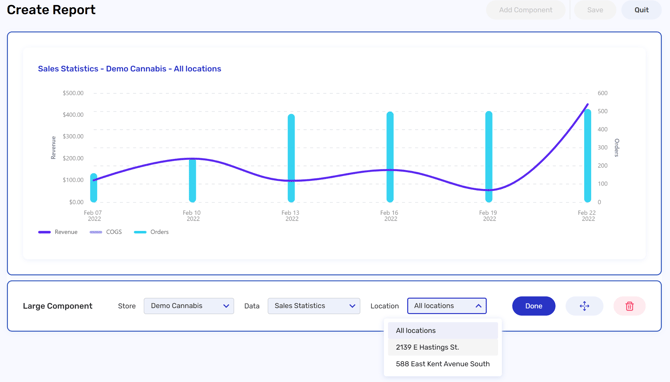
Click Done.
- If your store has multiple locations, you can can also choose one or all under Locations.
- Continue adding components. When you've added all you want to include, click Save in the upper right corner of the screen.
-
In the popup, fill in the following fields:
- Name
- Description
- Generate Frequency and Generate Date - e.g., Weekly on Mondays. This selection also determines the timeframe for the data you will see in your report.
Note that if you choose "Weekly" your report will be emailed out on the day after the one you select. If you choose "Monthly" the report generate on the first day of each month. - Auto-send to designated email address(es) - If you want the report shared with you and/or others by email, enter email addresses separated by commas, then hit the Enter key.
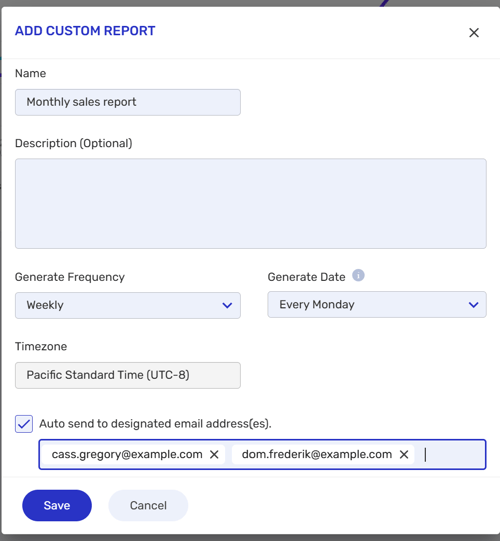
- Click Save. You'll see a popup confirming that your report was created. You can view the latest version of your report, or edit its settings and contents, by visiting Retail > Insights > Reports.
You can have a maximum of 50 custom reports saved at any given time.
Viewing or downloading a past report
To view or download any previous edition of a report:
- Go to Online Store > Insights > Reports and click on the report you would like to access.
- At the top of the page, select the timeframe you would like to view or download. You'll see the report appear on the page.
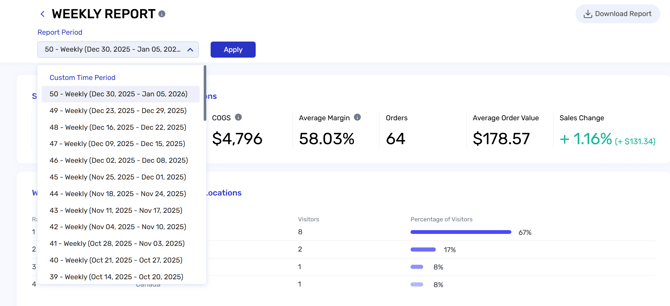
- To download the report, click Download at the top right of the screen. Note that the report will download as a PDF file.
Which data sets are available for each component?
When you're building a report, you can add graphs or tables as components. The difference between large, small, and number bar components is their sizing and the level of detail they display.
The data sets available for each component type are:
Number Bar:
- Sales Summary
- Customer Summary
- Inventory Management Summary
- Session Summary
- Loyalty Summary
Large Component:
- Top Selling Products
- Sales Statistics
- Online order vs. POS Purchase
- New vs. Returning Customer Order Value
- Gross Sales Per Visitor
- Inventory Stock Levels
- Session Statistics
- Conversion Funnel
- Web Users by Language
- Web Users by Country
- Web Users by City
- Web Users by Browser
- Web Users by OS
- Loyalty Revenue
Small Component:
- Average Order Value
- Top Selling Products
- Top Selling Categories
- Top Selling Brands
- Top Customer Order Value
- Reward Redemption
- Top Customer Order Value
- Inventory by Location
- Inventory Status
- Session by Country
- Session by Time
- Page Visits
- Session by Device
- Payment Method Breakdown - Online Orders
- Payment Method Breakdown - POS Purchases
- Most Popular Promotions
- Most Used Coupons