---
title: Creating a new promotion
description: Learn how to create a new promotion in Breadstack. Design an entirely new sale event or copy the settings from an old one.
---
[Skip to content](https://helpcentre.breadstack.com/creating-a-new-promotion#main-content)
[](https://breadstack.com)
Open main navigation
Close main navigation
- [Sign in to Breadstack](https://bs.app.breadstack.io/login)
[Sign in to Breadstack](https://bs.app.breadstack.io/login)
How can we help you?
- There are no suggestions because the search field is empty.
1. [Breadstack Help Centre](https://helpcentre.breadstack.com/?hsLang=en-ca)
2. [Online Store module](https://helpcentre.breadstack.com/online-store-module?hsLang=en-ca)
3. [Promotions](https://helpcentre.breadstack.com/online-store-module?hsLang=en-ca#promotions)
# Creating a new promotion
## Learn how to set up a new sale event in Breadstack, either from scratch or by duplicating an old promotion.
You can create an entirely original promotion, or duplicate a previous one and adjust its settings as needed.
- [Creating a brand new promotion](https://helpcentre.breadstack.com/creating-a-new-promotion#brand-new-promotion)
- [Duplicating a promotion](https://helpcentre.breadstack.com/creating-a-new-promotion#duplicating-promotion)
#### Before creating a new promotion...
Make sure you've set criteria for how promotions should combine (stack) with others. These settings automatically apply to all your promotions. [Learn more here](https://helpcentre.breadstack.com/controlling-how-promotions-combine?hsLang=en-ca).
### Creating a brand new promotion
1. Navigate to **Promotions **and click **+Add Promotion **in the upper right corner.
2. Enter the settings for your promotion.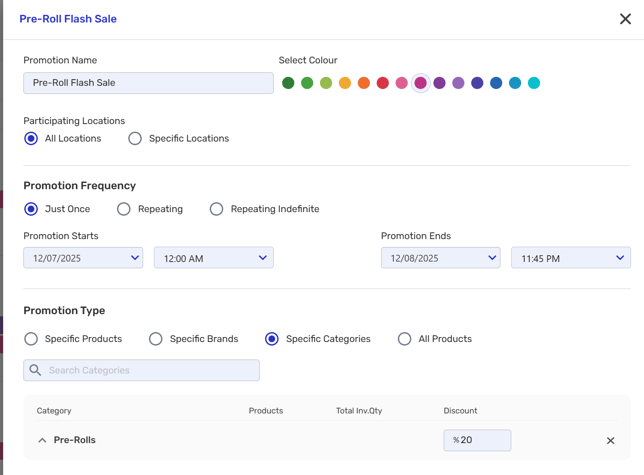
- **Promotion Name and Colour** - Make your promotion easy to identify later when you [track its performance](https://helpcentre.breadstack.com/tracking-the-success-of-your-promotions?hsLang=en-ca).
- **Participating Locations** - Choose which physical store locations will participate.
- **Promotion Frequency** - Enter a start and end date/time for your promotion, and choose whether it will be repeated on specific days of the week.
- If the promotion repeats until a certain date, select **Repeating**. If it you do not want to set an end date, select **Repeating indefinite**.
- **Promotion Type** - Choose whether this promotion covers all products, or use the search bar to identify specific products, brands, or categories. Then, enter the percentage discount you want to apply for each.
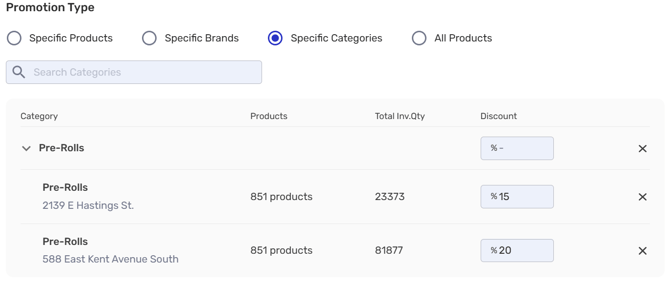
- (Optional) If you want to offer different discounts per location, use the expand arrow to view and customize each location with that product, brand, or category in stock.
3. Click **Save**. You'll see your new promotion appear on the Promotions page, both in Calendar and List view.
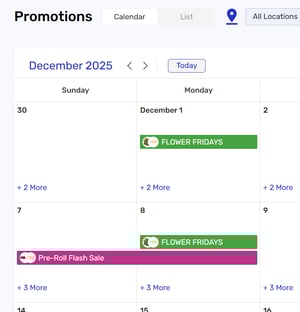
Newly created promotions take on the status *Scheduled*until their start time. Learn more about promotion statuses.
### Duplicating a promotion
Here's how to quickly copy an old promotion and adjust its settings.
1. Go to **Promotions **and find the promotion you would like to duplicate. If needed, use the Search bar at the top of the screen.
2. If you're using Calendar view, hover over the promotion and click **See details.** Or, if you're in List view, click on the promotion name.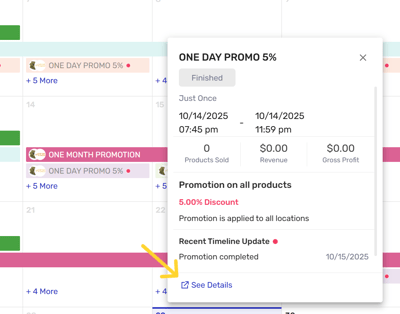
3. In the information panel, click **Duplicate**.

4. This will open a new promotion creation panel, with all the settings copied from your old promotion. Adjust as needed and click **Save**. You'll see your new promotion appear in calendar and list view.
- [Getting started](https://helpcentre.breadstack.com/getting-started?hsLang=en-ca)
- [Online Store module](https://helpcentre.breadstack.com/online-store-module?hsLang=en-ca#main-content)
- [Promotions](https://helpcentre.breadstack.com/online-store-module?hsLang=en-ca#promotions)
- [Orders](https://helpcentre.breadstack.com/online-store-module?hsLang=en-ca#orders)
- [Products](https://helpcentre.breadstack.com/online-store-module?hsLang=en-ca#products)
- [Insights](https://helpcentre.breadstack.com/online-store-module?hsLang=en-ca#insights)
- [Service module](https://helpcentre.breadstack.com/service-module?hsLang=en-ca#main-content)
- [Service](https://helpcentre.breadstack.com/service-module?hsLang=en-ca#service)
- [Settings module](https://helpcentre.breadstack.com/settings-module?hsLang=en-ca#main-content)
- [Data](https://helpcentre.breadstack.com/settings-module?hsLang=en-ca#data)
- [Channels](https://helpcentre.breadstack.com/settings-module?hsLang=en-ca#channels)
- [Team](https://helpcentre.breadstack.com/settings-module?hsLang=en-ca#team)
- [Operation](https://helpcentre.breadstack.com/settings-module?hsLang=en-ca#operation)
- [Breadstack Delivery (CanFleet)](https://helpcentre.breadstack.com/breadstack-delivery-canfleet?hsLang=en-ca#main-content)
- [Breadstack Delivery module](https://helpcentre.breadstack.com/breadstack-delivery-canfleet?hsLang=en-ca#breadstack-delivery-module)
- [CanFleet Driver App](https://helpcentre.breadstack.com/breadstack-delivery-canfleet?hsLang=en-ca#canfleet-driver-app)
- [Breadstack OMS App](https://helpcentre.breadstack.com/breadstack-oms-app?hsLang=en-ca)
- [Integrations](https://helpcentre.breadstack.com/integrations?hsLang=en-ca#main-content)
- [Integrating a payment provider](https://helpcentre.breadstack.com/integrations?hsLang=en-ca#integrating-a-payment-provider)
- [Integrating a shipping or delivery partner](https://helpcentre.breadstack.com/integrations?hsLang=en-ca#integrating-a-shipping-or-delivery-partner)
- [Website editing guides](https://helpcentre.breadstack.com/website-editing-guides?hsLang=en-ca)
[](http://breadstack.com)
[mailto:email@email.com](mailto:email@email.com)
Copyright © 2026, Breadstack