---
title: "CanFleet Driver App: Managing your account settings"
description: Learn how to control notifications, availability, your profile name and photo, and other settings in the CanFleet Driver App.
---
[Skip to content](https://helpcentre.breadstack.com/canfleet-driver-app-managing-your-account-settings#main-content)
[](https://breadstack.com)
Open main navigation
Close main navigation
- [Sign in to Breadstack](https://bs.app.breadstack.io/login)
[Sign in to Breadstack](https://bs.app.breadstack.io/login)
How can we help you?
- There are no suggestions because the search field is empty.
1. [Breadstack Help Centre](https://helpcentre.breadstack.com/?hsLang=en-ca)
2. [Breadstack Delivery (CanFleet)](https://helpcentre.breadstack.com/breadstack-delivery-canfleet?hsLang=en-ca)
3. [CanFleet Driver App](https://helpcentre.breadstack.com/breadstack-delivery-canfleet?hsLang=en-ca#canfleet-driver-app)
# CanFleet Driver App: Managing your account settings
## Learn how to update your profile, or control notifications and availability settings in the CanFleet Driver App.
In this article, you can find:
- [Changing your name or photo](https://helpcentre.breadstack.com/canfleet-driver-app-managing-your-account-settings#name-photo)
- [Turning task auto-assignment on or off](https://helpcentre.breadstack.com/canfleet-driver-app-managing-your-account-settings#auto-assignment)
- [Customizing notification settings](https://helpcentre.breadstack.com/canfleet-driver-app-managing-your-account-settings#notifications)
- [Switching companies](https://helpcentre.breadstack.com/canfleet-driver-app-managing-your-account-settings#switching-companies)
Looking for guidance on installing and setting up the app for the first time? See [Setup and first login](https://helpcentre.breadstack.com/canfleet-driver-app-setup-and-first-login?hsLang=en-ca).
### Changing your name or photo
Dispatchers use your profile name and photo to recognize you when assigning tasks.
1. Tap **Account**, then tap your name in the options list.
2. To edit your name, simply type in the **Name** field.
To change your profile photo, tap your photo and select either **Choose from library** or **Take photo**.
3. Tap **Update** to save changes.
### Turning auto-assignment on or off
Companies that use CanFleet can allow the system to auto-assign tasks to drivers. This means that CanFleet will automatically divide new tasks between available drivers based on their location and capacity.
If you no longer want to receive auto-assigned tasks, tap **Account** > **Auto-assigning tasks**. Then, toggle **Pause auto-assigned tasks** to **On**. You'll see a red banner at the top of your screen confirming that you are not receiving auto-assigned tasks.
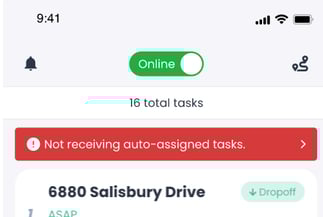
To turn it back on, either tap this banner or visit **Account** > **Auto-assigning tasks **and adjust the toggle to **Off**.
Pausing auto-assigned tasks will *not* prevent you from receiving tasks manually assigned to you by your dispatcher.
To stop receiving tasks altogether and prevent dispatchers from viewing your location, switch the toggle at the top of your screen to Offline.
### Customizing notification settings
Visit **Account > Notifications **to customize the types of notifications you receive.
- At the top of the page, you can enable or disable **Show notifications **to allow or block CanFleet notifications altogether.
- Enable **Navigation notifications **to receive updates about your route, even when the app is closed.
- Enable **Alert **to ensure you receive direct updates from your dispatcher about urgent issues or changes.
- Enable **Location tracking** so that your dispatcher knows where you are and can assign you tasks accordingly.
- Enable **Tasks** notifications if you would like to be notified about tasks newly assigned to you, or reassigned from you to others.
### Switching companies
Tap **Account > Switch Company** to view a list of the companies that have added you as a driver.
Tap on a company, then tap **Switch **to start driving for that company.
Note that you can only receive tasks for one company at a time. When you switch to another company, you'll no longer be able to receive or complete tasks from the previous company.
- [Getting started](https://helpcentre.breadstack.com/getting-started?hsLang=en-ca)
- [Online Store module](https://helpcentre.breadstack.com/online-store-module?hsLang=en-ca#main-content)
- [Promotions](https://helpcentre.breadstack.com/online-store-module?hsLang=en-ca#promotions)
- [Orders](https://helpcentre.breadstack.com/online-store-module?hsLang=en-ca#orders)
- [Products](https://helpcentre.breadstack.com/online-store-module?hsLang=en-ca#products)
- [Insights](https://helpcentre.breadstack.com/online-store-module?hsLang=en-ca#insights)
- [Service module](https://helpcentre.breadstack.com/service-module?hsLang=en-ca#main-content)
- [Service](https://helpcentre.breadstack.com/service-module?hsLang=en-ca#service)
- [Settings module](https://helpcentre.breadstack.com/settings-module?hsLang=en-ca#main-content)
- [Data](https://helpcentre.breadstack.com/settings-module?hsLang=en-ca#data)
- [Channels](https://helpcentre.breadstack.com/settings-module?hsLang=en-ca#channels)
- [Team](https://helpcentre.breadstack.com/settings-module?hsLang=en-ca#team)
- [Operation](https://helpcentre.breadstack.com/settings-module?hsLang=en-ca#operation)
- [Breadstack Delivery (CanFleet)](https://helpcentre.breadstack.com/breadstack-delivery-canfleet?hsLang=en-ca#main-content)
- [Breadstack Delivery module](https://helpcentre.breadstack.com/breadstack-delivery-canfleet?hsLang=en-ca#breadstack-delivery-module)
- [CanFleet Driver App](https://helpcentre.breadstack.com/breadstack-delivery-canfleet?hsLang=en-ca#canfleet-driver-app)
- [Breadstack OMS App](https://helpcentre.breadstack.com/breadstack-oms-app?hsLang=en-ca)
- [Integrations](https://helpcentre.breadstack.com/integrations?hsLang=en-ca#main-content)
- [Integrating a payment provider](https://helpcentre.breadstack.com/integrations?hsLang=en-ca#integrating-a-payment-provider)
- [Integrating a shipping or delivery partner](https://helpcentre.breadstack.com/integrations?hsLang=en-ca#integrating-a-shipping-or-delivery-partner)
- [Website editing guides](https://helpcentre.breadstack.com/website-editing-guides?hsLang=en-ca)
[](http://breadstack.com)
[mailto:email@email.com](mailto:email@email.com)
Copyright © 2026, Breadstack