---
title: "CanFleet Driver App: Completing pickup and dropoff tasks"
description: As a driver, learn to use the CanFleet Driver App to manage pickups and dropoffs from start to finish.
---
[Skip to content](https://helpcentre.breadstack.com/canfleet-driver-app-handling-pickup-and-dropoff-tasks#main-content)
[](https://breadstack.com)
Open main navigation
Close main navigation
- [Sign in to Breadstack](https://bs.app.breadstack.io/login)
[Sign in to Breadstack](https://bs.app.breadstack.io/login)
How can we help you?
- There are no suggestions because the search field is empty.
1. [Breadstack Help Centre](https://helpcentre.breadstack.com/?hsLang=en-ca)
2. [Breadstack Delivery (CanFleet)](https://helpcentre.breadstack.com/breadstack-delivery-canfleet?hsLang=en-ca)
3. [CanFleet Driver App](https://helpcentre.breadstack.com/breadstack-delivery-canfleet?hsLang=en-ca#canfleet-driver-app)
# CanFleet Driver App: Completing pickup and dropoff tasks
## Learn how to use the app to accept tasks, navigate routes, and confirm deliveries.
Visit your To do list to see all the tasks currently assigned to you. Note that you can only open tasks in the order your dispatcher has assigned them to you.
- [Handling a pickup task](https://helpcentre.breadstack.com/canfleet-driver-app-handling-pickup-and-dropoff-tasks#pickup)
- [Handling a dropoff task](https://helpcentre.breadstack.com/canfleet-driver-app-handling-pickup-and-dropoff-tasks#dropoff)
- [Confirming package delivery](https://helpcentre.breadstack.com/canfleet-driver-app-handling-pickup-and-dropoff-tasks#confirm) by photo or signature
#### What if you can't complete a pickup or dropoff?
You may be unable to complete a dropoff for any number of reasons, such as the pickup not being ready, the customer being unavailable, or incidents along your route. See what to do if you can't complete a task.
### Completing a pickup task
When you're ready to start a pickup task, tap on it to open it fully.
1. To view your route to the pickup location, tap the location address.
Choose your preferred navigation app: switch to **Google Maps** or **Waze**, or stay with CanFleet's own **in-app navigator.**
*Note: If you prefer, you can create a single, optimized route with all your current tasks. [See here for more.](https://helpcentre.breadstack.com/canfleet-driver-app-handling-pickup-and-dropoff-tasks#multiple-stops)*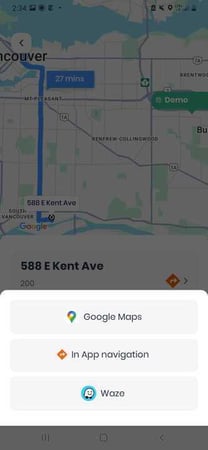
2. When you've arrived at the pickup location, tap **I'm Here**. This will display a list of all the pending pickup tasks at that location.
As you pick up each order, confirm by either taking a photo of the package or scanning the barcode.
3. When you've successfully taken a photo or scanned the barcode, you'll see an orange **Complete** button appear. Tapping here will transform the task from a pickup to a [drop-off task](https://helpcentre.breadstack.com/canfleet-driver-app-handling-pickup-and-dropoff-tasks#dropoff).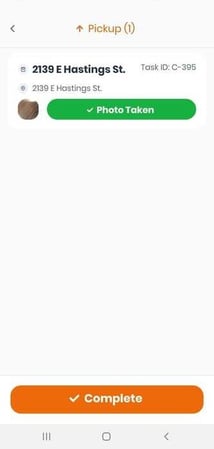
#### Navigating through multiple stops
If you prefer, you can establish a single route in Google Maps or the CanFleet Driver App that features stops for all your current tasks.
---
### Handling a dropoff task
1. To start a dropoff task, tap the task in your To Do list. This will open the task information screen.
2. When you're about to start your route to the dropoff location, tap and hold the **Hold to start** button. This will generate a text message to the customer, letting them know you're on your way.
Note that you'll now be unable to switch tasks until this one is complete.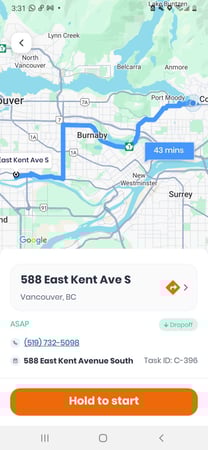
3. To view your route to the pickup location, tap the location address.
Choose whether you'd like to view the route in **Google Maps** or **Waze**, or stay with CanFleet's own **in-app navigator** which supports real-time traffic conditions and dynamic rerouting to keep deliveries on schedule.
4. When you've arrived, tap **I'm Here**. This will open up the ability to confirm delivery via a photo or signature.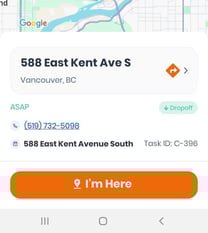
#### Confirming package delivery
After tapping **I'm Here**, you'll see instructions as to whether a signature, photo, or both are required for confirmation.

| If you see the **Signature** button - Tap it, pass your device to the customer, have them sign with their finger or a stylus, and tap Done. | 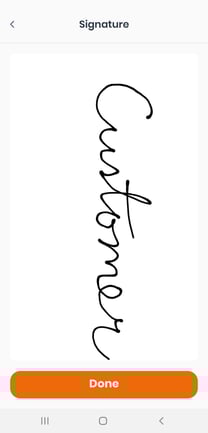 |
| --- | --- |
| If you see the **Picture** button - Tap it, take a clear photo of the package at the delivery location (including the waybill) and tap the check mark. | |
Once you've collected a picture and/or signature, you'll see a green **Complete** button. Tap here when you've finished delivering the package and are ready to end the task. The customer will receive a text message confirming that their package was delivered.
- Confirming delivery (photo + signature)
- Completing task (SMS confirmation sent to customer)
- If drop-off fails (steps + reasons, return/skip options)
- Forced completion by admin (what drivers see)
---
#### 7. Navigation
- Options: In-app navigation, Google Maps, Waze
- Starting navigation from task screen or To-do tab
- Multi-stop navigation (optional)
- [Getting started](https://helpcentre.breadstack.com/getting-started?hsLang=en-ca)
- [Online Store module](https://helpcentre.breadstack.com/online-store-module?hsLang=en-ca#main-content)
- [Promotions](https://helpcentre.breadstack.com/online-store-module?hsLang=en-ca#promotions)
- [Orders](https://helpcentre.breadstack.com/online-store-module?hsLang=en-ca#orders)
- [Products](https://helpcentre.breadstack.com/online-store-module?hsLang=en-ca#products)
- [Insights](https://helpcentre.breadstack.com/online-store-module?hsLang=en-ca#insights)
- [Service module](https://helpcentre.breadstack.com/service-module?hsLang=en-ca#main-content)
- [Service](https://helpcentre.breadstack.com/service-module?hsLang=en-ca#service)
- [Settings module](https://helpcentre.breadstack.com/settings-module?hsLang=en-ca#main-content)
- [Data](https://helpcentre.breadstack.com/settings-module?hsLang=en-ca#data)
- [Channels](https://helpcentre.breadstack.com/settings-module?hsLang=en-ca#channels)
- [Team](https://helpcentre.breadstack.com/settings-module?hsLang=en-ca#team)
- [Operation](https://helpcentre.breadstack.com/settings-module?hsLang=en-ca#operation)
- [Breadstack Delivery (CanFleet)](https://helpcentre.breadstack.com/breadstack-delivery-canfleet?hsLang=en-ca#main-content)
- [Breadstack Delivery module](https://helpcentre.breadstack.com/breadstack-delivery-canfleet?hsLang=en-ca#breadstack-delivery-module)
- [CanFleet Driver App](https://helpcentre.breadstack.com/breadstack-delivery-canfleet?hsLang=en-ca#canfleet-driver-app)
- [Breadstack OMS App](https://helpcentre.breadstack.com/breadstack-oms-app?hsLang=en-ca)
- [Integrations](https://helpcentre.breadstack.com/integrations?hsLang=en-ca#main-content)
- [Integrating a payment provider](https://helpcentre.breadstack.com/integrations?hsLang=en-ca#integrating-a-payment-provider)
- [Integrating a shipping or delivery partner](https://helpcentre.breadstack.com/integrations?hsLang=en-ca#integrating-a-shipping-or-delivery-partner)
- [Website editing guides](https://helpcentre.breadstack.com/website-editing-guides?hsLang=en-ca)
[](http://breadstack.com)
[mailto:email@email.com](mailto:email@email.com)
Copyright © 2026, Breadstack