---
title: "CanFleet Driver App: What to do when you can't complete a task"
description: When you can't complete a pickup or drop-off task, the CanFleet Driver App can guide you through next steps.
---
[Skip to content](https://helpcentre.breadstack.com/canfleet-driver-app-cant-complete-a-task#main-content)
[](https://breadstack.com)
Open main navigation
Close main navigation
- [Sign in to Breadstack](https://bs.app.breadstack.io/login)
[Sign in to Breadstack](https://bs.app.breadstack.io/login)
How can we help you?
- There are no suggestions because the search field is empty.
1. [Breadstack Help Centre](https://helpcentre.breadstack.com/?hsLang=en-ca)
2. [Breadstack Delivery (CanFleet)](https://helpcentre.breadstack.com/breadstack-delivery-canfleet?hsLang=en-ca)
3. [CanFleet Driver App](https://helpcentre.breadstack.com/breadstack-delivery-canfleet?hsLang=en-ca#canfleet-driver-app)
# CanFleet Driver App: What to do when you can't complete a task
## As a delivery driver, there may be any number of reasons you can't complete a pickup or drop-off. Here's what to do.
Whether because of incidents on the road or package mix-ups, you might find yourself unable to pick up or deliver an order.
If this occurs, make sure you log the failed pickup or drop-off in the CanFleet Driver App. This will notify your store's dispatcher about the issue and guide you through next steps.
- [When you can't complete a pickup](https://helpcentre.breadstack.com/canfleet-driver-app-cant-complete-a-task#pickup)
- [When you can't complete a drop-off](https://helpcentre.breadstack.com/canfleet-driver-app-cant-complete-a-task#drop-off)
- [Handling a return](https://helpcentre.breadstack.com/canfleet-driver-app-cant-complete-a-task#return) after a failed drop-off
### When you can't complete a pickup
1. With the task open, tap **I'm Here** (even if you have been unable to reach the destination).
2. Swipe left on the task panel, then tap the red **Remove** button.This 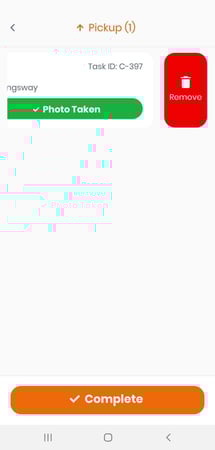
3. In the popup, choose a reason for the failed pickup.
4. Choose whether you will
- **Do it later **- The task will remain in your list, but you'll be able to handle other tasks first.
- **Assign to another driver** - This will prompt your dispatcher to reassign the task. The task will immediately disappear from your list.
### When you can't complete a drop-off
1. With the task open, tap **I'm Here** (even if you have been unable to reach the destination).
2. Tap **Got an issue? Tap here** at the bottom of the screen.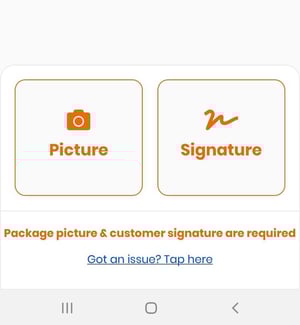
3. In the popup, choose a reason for the failed drop-off.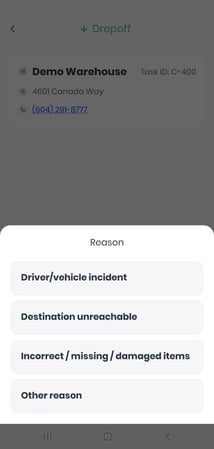
4. Choose whether you will
- **Do it later **- The task will remain in your list, but you'll be able to handle other tasks first.
- **Return to the pickup location** - The task will turn into a Return task (see below for how to handle these tasks).
- **Skip this task **- The task will immediately disappear from your list.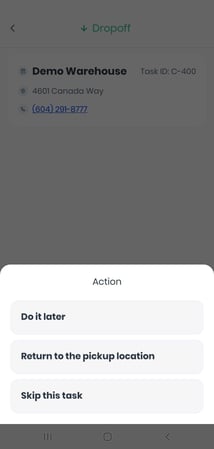
#### Handling a return task
When you've been unable to complete a drop-off and confirmed that you will return the package to the pickup location, the drop-off task turns into a Return task.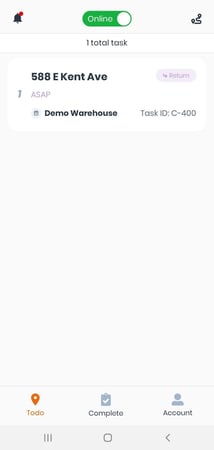
Here's how to complete a return.
1. Tap the task to open it.
2. To view your route to the return location, tap the location address.
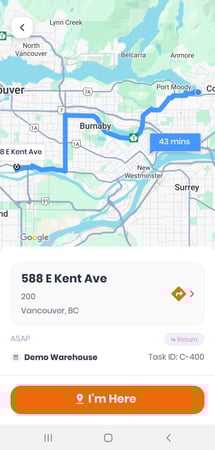
Choose your preferred navigation app: switch to **Google Maps** or **Waze**, or stay with CanFleet's own **in-app navigator.**
3. When you've arrived at the pickup location, tap **I'm Here**.
4. Obtain a **Picture **of the package and a **Signature** to confirm the return.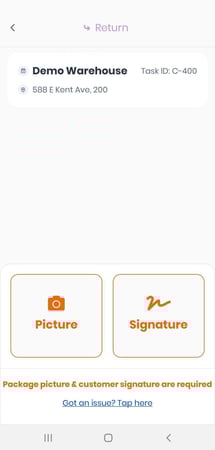
5. Once you have both, tap **Complete**. This will confirm to your dispatcher that the items were returned and end the task.
- [Getting started](https://helpcentre.breadstack.com/getting-started?hsLang=en-ca)
- [Online Store module](https://helpcentre.breadstack.com/online-store-module?hsLang=en-ca#main-content)
- [Promotions](https://helpcentre.breadstack.com/online-store-module?hsLang=en-ca#promotions)
- [Orders](https://helpcentre.breadstack.com/online-store-module?hsLang=en-ca#orders)
- [Products](https://helpcentre.breadstack.com/online-store-module?hsLang=en-ca#products)
- [Insights](https://helpcentre.breadstack.com/online-store-module?hsLang=en-ca#insights)
- [Service module](https://helpcentre.breadstack.com/service-module?hsLang=en-ca#main-content)
- [Service](https://helpcentre.breadstack.com/service-module?hsLang=en-ca#service)
- [Settings module](https://helpcentre.breadstack.com/settings-module?hsLang=en-ca#main-content)
- [Data](https://helpcentre.breadstack.com/settings-module?hsLang=en-ca#data)
- [Channels](https://helpcentre.breadstack.com/settings-module?hsLang=en-ca#channels)
- [Team](https://helpcentre.breadstack.com/settings-module?hsLang=en-ca#team)
- [Operation](https://helpcentre.breadstack.com/settings-module?hsLang=en-ca#operation)
- [Breadstack Delivery (CanFleet)](https://helpcentre.breadstack.com/breadstack-delivery-canfleet?hsLang=en-ca#main-content)
- [Breadstack Delivery module](https://helpcentre.breadstack.com/breadstack-delivery-canfleet?hsLang=en-ca#breadstack-delivery-module)
- [CanFleet Driver App](https://helpcentre.breadstack.com/breadstack-delivery-canfleet?hsLang=en-ca#canfleet-driver-app)
- [Breadstack OMS App](https://helpcentre.breadstack.com/breadstack-oms-app?hsLang=en-ca)
- [Integrations](https://helpcentre.breadstack.com/integrations?hsLang=en-ca#main-content)
- [Integrating a payment provider](https://helpcentre.breadstack.com/integrations?hsLang=en-ca#integrating-a-payment-provider)
- [Integrating a shipping or delivery partner](https://helpcentre.breadstack.com/integrations?hsLang=en-ca#integrating-a-shipping-or-delivery-partner)
- [Website editing guides](https://helpcentre.breadstack.com/website-editing-guides?hsLang=en-ca)
[](http://breadstack.com)
[mailto:email@email.com](mailto:email@email.com)
Copyright © 2026, Breadstack