---
title: Cancelling and refunding an order
description: Learn how to cancel and refund an order. Depending on the order status and payment method, you may need to take action in Breadstack, your POS, or both.
---
[Skip to content](https://helpcentre.breadstack.com/cancelling-and-refunding-an-order#main-content)
[](https://breadstack.com)
Open main navigation
Close main navigation
- [Sign in to Breadstack](https://bs.app.breadstack.io/login)
[Sign in to Breadstack](https://bs.app.breadstack.io/login)
How can we help you?
- There are no suggestions because the search field is empty.
1. [Breadstack Help Centre](https://helpcentre.breadstack.com/?hsLang=en-ca)
2. [Online Store module](https://helpcentre.breadstack.com/online-store-module?hsLang=en-ca)
3. [Orders](https://helpcentre.breadstack.com/online-store-module?hsLang=en-ca#orders)
# Cancelling and refunding an order
## Your POS has rules that determine how orders can be cancelled and refunded. Learn what you can do in Breadstack, and what must be completed directly in your POS.
When a customer places an order through your Breadstack storefront, the order is also created in your POS.
Because of this, refund and cancellation options depend on **order status** and **payment method**. Some credit card refunds happen automatically in Breadstack, but most cash and e-transfer refunds must be completed directly in your POS.
To cancel and refund an order:
1. Check [Order statuses and what you can do](https://helpcentre.breadstack.com/cancelling-and-refunding-an-order#order-statuses)
2. (If eligible) follow the steps for [cancelling an order in Breadstack](https://helpcentre.breadstack.com/cancelling-and-refunding-an-order#cancel-in-breadstack)
3. (If needed) follow the steps for [processing a refund in your POS](https://helpcentre.breadstack.com/cancelling-and-refunding-an-order#pos-refund)
### Order statuses and what you can do
#### On Hold
Orders appear as *On Hold* when payment has not been completed. For example, you haven't received the customer's e-transfer, or the customer selected in-store pickup and will be paying in-store.
You can cancel *On Hold* orders directly in Breadstack.
#### If the customer paid by credit card
The order may skip *On Hold* and move straight to *Processing* (see below).
If a credit card payment attempt fails, the order may remain in *Pending* or *On Hold*, depending on the scenario.
#### Processing
An order enters *Processing* once payment has been received and it’s ready for fulfillment. You can cancel these orders in Breadstack, but your available refund actions depend on how the order was paid.
##### For credit card payments
Cancelling the order in Breadstack will **automatically trigger a refund** to the customer’s card. No additional action is required in your POS.
##### For non-credit-card payments (cash, e-transfer, etc.)
You can cancel the order in Breadstack, but the refund will ***not* be automatic**. You must process the refund directly in your POS.
#### Completed
Orders marked *Completed* can no longer be cancelled or refunded in Breadstack. You must process the refund directly in your POS. Breadstack will update the order status after the POS reports the refund
### Cancelling an order in Breadstack
To cancel an order in Breadstack (after confirming above that it is eligible):
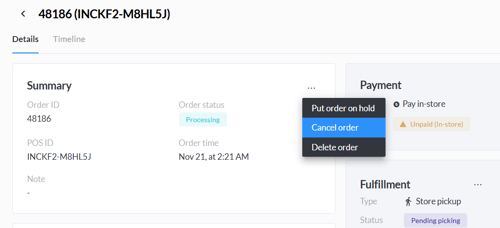
1. Visit **Orders > All Orders **and search for the order you would like to cancel.
2. In the order details screen, open the menu in the corner of the Summary panel.
3. Click **Cancel order**.
### Processing a refund in your POS
Breadstack requires refunds for non-credit-card payments to be completed in your POS. The steps vary slightly between Greenline and Cova.
#### Refunding in Greenline
Before you start, open the **Order Details** in Breadstack and copy the order’s **POS ID**. You'll need this to find the order in Greenline.
Once you have the POS ID.
1. Open your **Greenline POS** and go to the **Sales** tab.
2. Search for the sale using the POS ID in the **Sale ID **field.
3. Select **Refund**.
4. Enter the refund amount.
- You can process a **full** or **partial** refund.
- Note that you can also refund **shipping fees** separately in Greenline.
5. Confirm the refund.
##### After refunding
- **Full refund:** Breadstack updates the order status to **Refunded**.
- **Partial refund:** The order status remains unchanged, but refunded items/amounts appear as line items in **Order Details** in Breadstack.
- If you refunded the order's **shipping fees**, these will appear as **Other refund **in the Order Details in Breadstack.
#### Refunding in Cova
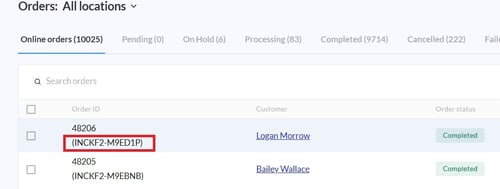
Before you start, find the order’s **POS ID** in Breadstack (you'll need this to search for the order in Cova). The POS ID is located under the order number in the **All Orders** list.
Once you have the POS ID:
1. Open your **Cova POS** and go to the **Invoice** tab.
2. Search for the order using thePOS ID in the **Invoice # **field.
3. Select **Refund**.
4. Choose whether to refund the entire order or specific item(s).
5. Enter the refund amount and confirm the refund using the correct payment method.
##### After refunding
- **Full refund:** Breadstack updates the order status to **Refunded**.
- **Partial refund:** The order remains active, but refunded items/amounts appear in **Order Details** in Breadstack.
- [Getting started](https://helpcentre.breadstack.com/getting-started?hsLang=en-ca)
- [Online Store module](https://helpcentre.breadstack.com/online-store-module?hsLang=en-ca#main-content)
- [Promotions](https://helpcentre.breadstack.com/online-store-module?hsLang=en-ca#promotions)
- [Orders](https://helpcentre.breadstack.com/online-store-module?hsLang=en-ca#orders)
- [Products](https://helpcentre.breadstack.com/online-store-module?hsLang=en-ca#products)
- [Insights](https://helpcentre.breadstack.com/online-store-module?hsLang=en-ca#insights)
- [Service module](https://helpcentre.breadstack.com/service-module?hsLang=en-ca#main-content)
- [Service](https://helpcentre.breadstack.com/service-module?hsLang=en-ca#service)
- [Settings module](https://helpcentre.breadstack.com/settings-module?hsLang=en-ca#main-content)
- [Data](https://helpcentre.breadstack.com/settings-module?hsLang=en-ca#data)
- [Channels](https://helpcentre.breadstack.com/settings-module?hsLang=en-ca#channels)
- [Team](https://helpcentre.breadstack.com/settings-module?hsLang=en-ca#team)
- [Operation](https://helpcentre.breadstack.com/settings-module?hsLang=en-ca#operation)
- [Breadstack Delivery (CanFleet)](https://helpcentre.breadstack.com/breadstack-delivery-canfleet?hsLang=en-ca#main-content)
- [Breadstack Delivery module](https://helpcentre.breadstack.com/breadstack-delivery-canfleet?hsLang=en-ca#breadstack-delivery-module)
- [CanFleet Driver App](https://helpcentre.breadstack.com/breadstack-delivery-canfleet?hsLang=en-ca#canfleet-driver-app)
- [Breadstack OMS App](https://helpcentre.breadstack.com/breadstack-oms-app?hsLang=en-ca)
- [Integrations](https://helpcentre.breadstack.com/integrations?hsLang=en-ca#main-content)
- [Integrating a payment provider](https://helpcentre.breadstack.com/integrations?hsLang=en-ca#integrating-a-payment-provider)
- [Integrating a shipping or delivery partner](https://helpcentre.breadstack.com/integrations?hsLang=en-ca#integrating-a-shipping-or-delivery-partner)
- [Website editing guides](https://helpcentre.breadstack.com/website-editing-guides?hsLang=en-ca)
[](http://breadstack.com)
[mailto:email@email.com](mailto:email@email.com)
Copyright © 2026, Breadstack