---
title: Assigning a task to a driver
description: Learn how to select a driver for a Breadstack Delivery task.
---
[Skip to content](https://helpcentre.breadstack.com/assigning-a-task-to-a-driver#main-content)
[](https://breadstack.com)
Open main navigation
Close main navigation
- [Sign in to Breadstack](https://bs.app.breadstack.io/login)
[Sign in to Breadstack](https://bs.app.breadstack.io/login)
How can we help you?
- There are no suggestions because the search field is empty.
1. [Breadstack Help Centre](https://helpcentre.breadstack.com/?hsLang=en-ca)
2. [Breadstack Delivery (CanFleet)](https://helpcentre.breadstack.com/breadstack-delivery-canfleet?hsLang=en-ca)
3. [Breadstack Delivery module](https://helpcentre.breadstack.com/breadstack-delivery-canfleet?hsLang=en-ca#breadstack-delivery-module)
# Assigning a task to a driver
## Learn how to manually assign a pickup or dropoff task to a Breadstack Delivery driver.
**If you'd prefer to automate task assignment**, turn on Breadstack Delivery's auto-assignment feature.
You can manually assign tasks from either the **Live Tracking** screen or the **Task List** screen:
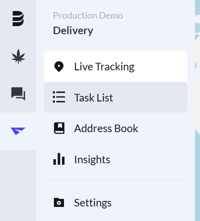
- [Assigning tasks from the Live Tracking screen](https://helpcentre.breadstack.com/assigning-a-task-to-a-driver#live-tracking)
- [Assigning tasks from the Task List screen](https://helpcentre.breadstack.com/assigning-a-task-to-a-driver#task-list)
### Assigning tasks from the Live Tracking screen
1. If your workspace has unassigned tasks, you'll see a red dot on the **Tasks** toggle of the **Live Monitoring **panel.
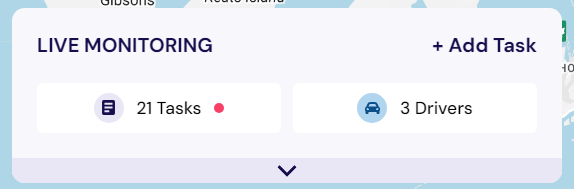
2. Open the panel and view unassigned tasks at the top of the list. If you're looking for a specific task, you can search for it by entering its ID or address information in the search bar.
- To assign a single task, click on it. *(To assign multiple tasks to the same driver, hold down Control or Command and click each task.)*
This will open the task detail panel. Click **Assign** to open a list of drivers to choose from.
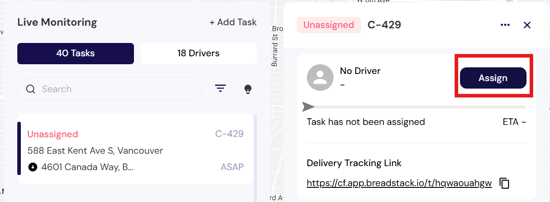
3. You'll see a list of your drivers (if you have set up teams, you can view each team separately). Select a driver and click **Assign**.
4. Once assigned, the task will take on **Pickup **status (if it is a pickup and delivery task) or **Delivery **status (if it's a delivery-only task).
Your driver will receive a notification in the [CanFleet Driver App](https://helpcentre.breadstack.com/canfleet-driver-app?hsLang=en-ca). They must confirm receipt of the task; then it will be added to their route.
You can track the progress of the task, reassign it if needed, and set its position in the driver's route.
### Assigning tasks from the Task List screen
1. Go to the **Task List** and change the **Status **filter dropdown to **Unassigned.**
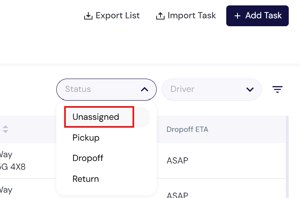
2. Select an unassigned task. In the task information panel, click **Assign.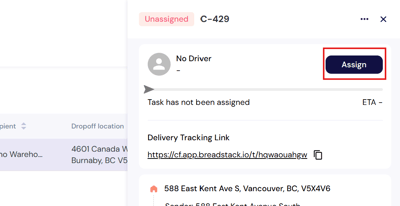**
3. You'll see a list of your drivers (if you have set up teams, you can view each team separately). Select a driver and click **Assign**.
4. The task will now take on **Pickup **status (if it is a pickup and delivery task) or **Delivery **status (if is a delivery-only task).
Your driver will receive a notification in the [CanFleet Driver App](https://helpcentre.breadstack.com/canfleet-driver-app?hsLang=en-ca). They must confirm receipt of the task; then it will be added to their route.
You can track the progress of the task, reassign it if needed, and set its position in the driver's route.
- [Getting started](https://helpcentre.breadstack.com/getting-started?hsLang=en-ca)
- [Online Store module](https://helpcentre.breadstack.com/online-store-module?hsLang=en-ca#main-content)
- [Promotions](https://helpcentre.breadstack.com/online-store-module?hsLang=en-ca#promotions)
- [Orders](https://helpcentre.breadstack.com/online-store-module?hsLang=en-ca#orders)
- [Products](https://helpcentre.breadstack.com/online-store-module?hsLang=en-ca#products)
- [Insights](https://helpcentre.breadstack.com/online-store-module?hsLang=en-ca#insights)
- [Service module](https://helpcentre.breadstack.com/service-module?hsLang=en-ca#main-content)
- [Service](https://helpcentre.breadstack.com/service-module?hsLang=en-ca#service)
- [Settings module](https://helpcentre.breadstack.com/settings-module?hsLang=en-ca#main-content)
- [Data](https://helpcentre.breadstack.com/settings-module?hsLang=en-ca#data)
- [Channels](https://helpcentre.breadstack.com/settings-module?hsLang=en-ca#channels)
- [Team](https://helpcentre.breadstack.com/settings-module?hsLang=en-ca#team)
- [Operation](https://helpcentre.breadstack.com/settings-module?hsLang=en-ca#operation)
- [Breadstack Delivery (CanFleet)](https://helpcentre.breadstack.com/breadstack-delivery-canfleet?hsLang=en-ca#main-content)
- [Breadstack Delivery module](https://helpcentre.breadstack.com/breadstack-delivery-canfleet?hsLang=en-ca#breadstack-delivery-module)
- [CanFleet Driver App](https://helpcentre.breadstack.com/breadstack-delivery-canfleet?hsLang=en-ca#canfleet-driver-app)
- [Breadstack OMS App](https://helpcentre.breadstack.com/breadstack-oms-app?hsLang=en-ca)
- [Integrations](https://helpcentre.breadstack.com/integrations?hsLang=en-ca#main-content)
- [Integrating a payment provider](https://helpcentre.breadstack.com/integrations?hsLang=en-ca#integrating-a-payment-provider)
- [Integrating a shipping or delivery partner](https://helpcentre.breadstack.com/integrations?hsLang=en-ca#integrating-a-shipping-or-delivery-partner)
- [Website editing guides](https://helpcentre.breadstack.com/website-editing-guides?hsLang=en-ca)
[](http://breadstack.com)
[mailto:email@email.com](mailto:email@email.com)
Copyright © 2026, Breadstack