Note that this article pertains to adding team members who will work in Breadstack's Online Store, Service, and Settings modules.
Breadstack Delivery has its own invitation / management system for users and drivers.
To add a new user:
-
Go to Settings > Users.
-
Click +Invite New User.
-
Fill in your new user's First Name, Last Name, and Email.
If you manage multiple organizations, you'll be asked to select one under Organization Name. -
Set the user's role. Each role involves distinct permissions and restrictions. Note that you can edit a user's role later on (unless the user is an Admin).

- Click Send. You'll see a popup confirming that an invitation email was sent.
Tracking newly added users
To check whether a newly invited user has successfully joined Breadstack:
- Go to Settings > Users.
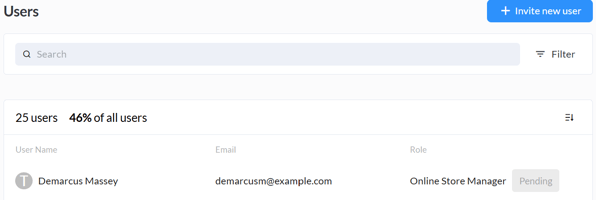
- Search for the user you would like to track (the most recently invited users appear at the top by default, or you can use the filters/search options).
If your new user hasn't accepted their invitation yet, their status will appear as Pending. Once they have completed account setup, it will change to Active.