---
title: Adding a driver
description: Add a driver to Breadstack Delivery by generating an SMS invitation to the CanFleet Driver App.
---
[Skip to content](https://helpcentre.breadstack.com/adding-a-driver#main-content)
[](https://breadstack.com)
Open main navigation
Close main navigation
- [Sign in to Breadstack](https://bs.app.breadstack.io/login)
[Sign in to Breadstack](https://bs.app.breadstack.io/login)
How can we help you?
- There are no suggestions because the search field is empty.
1. [Breadstack Help Centre](https://helpcentre.breadstack.com/?hsLang=en-ca)
2. [Breadstack Delivery (CanFleet)](https://helpcentre.breadstack.com/breadstack-delivery-canfleet?hsLang=en-ca)
3. [Breadstack Delivery module](https://helpcentre.breadstack.com/breadstack-delivery-canfleet?hsLang=en-ca#breadstack-delivery-module)
# Adding a driver
## Learn how to invite a driver to your Breadstack Delivery team.
Before you can start managing delivery tasks in Breadstack Delivery, you'll need to add at least one driver.
You can generate an SMS invitation that will prompt your driver to download the CanFleet Driver App. Once they've completed setup, you can start assigning them tasks.
#### What is the CanFleet Driver App?
The CanFleet Driver App is Breadstack Delivery's mobile app for drivers. It allows them to receive your pickup and dropoff tasks, navigate routes to locations, and confirm when jobs are done.
Invite your driver to get familiar with the app by browsing the [driver app section of the help centre](https://helpcentre.breadstack.com/canfleet-driver-app?hsLang=en-ca).
1. In Breadstack Delivery, go to **Settings \> Drivers.** In the upper right corner,select **+****Add Driver.**
2. Fill in your driver's **First Name**, **Last Name**, and **Phone Number.**
Note that the phone number you enter here must be the one your driver wishes to use to operate the CanFleet Driver App. Its country code must also match the country in which your store operates.
If desired, you can also give your driver a **Display Name** to help you recognize him or her when assigning tasks within CanFleet.
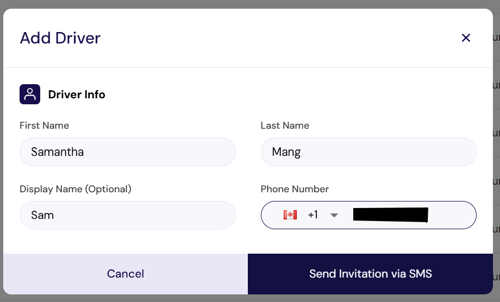
3. Click **Send Invitation via SMS**. Your driver will receive a text message with a link to download and log into the CanFleet Driver App.
You can check the status of the invitation in **Settings** \> **Drivers**. Until your driver has downloaded the app and logged in for the first time, their status will read *Pending invite.* This will change to *Online*, *Offline*,or *Idle* once they become active.
- [Getting started](https://helpcentre.breadstack.com/getting-started?hsLang=en-ca)
- [Online Store module](https://helpcentre.breadstack.com/online-store-module?hsLang=en-ca#main-content)
- [Promotions](https://helpcentre.breadstack.com/online-store-module?hsLang=en-ca#promotions)
- [Orders](https://helpcentre.breadstack.com/online-store-module?hsLang=en-ca#orders)
- [Products](https://helpcentre.breadstack.com/online-store-module?hsLang=en-ca#products)
- [Insights](https://helpcentre.breadstack.com/online-store-module?hsLang=en-ca#insights)
- [Service module](https://helpcentre.breadstack.com/service-module?hsLang=en-ca#main-content)
- [Service](https://helpcentre.breadstack.com/service-module?hsLang=en-ca#service)
- [Settings module](https://helpcentre.breadstack.com/settings-module?hsLang=en-ca#main-content)
- [Data](https://helpcentre.breadstack.com/settings-module?hsLang=en-ca#data)
- [Channels](https://helpcentre.breadstack.com/settings-module?hsLang=en-ca#channels)
- [Team](https://helpcentre.breadstack.com/settings-module?hsLang=en-ca#team)
- [Operation](https://helpcentre.breadstack.com/settings-module?hsLang=en-ca#operation)
- [Breadstack Delivery (CanFleet)](https://helpcentre.breadstack.com/breadstack-delivery-canfleet?hsLang=en-ca#main-content)
- [Breadstack Delivery module](https://helpcentre.breadstack.com/breadstack-delivery-canfleet?hsLang=en-ca#breadstack-delivery-module)
- [CanFleet Driver App](https://helpcentre.breadstack.com/breadstack-delivery-canfleet?hsLang=en-ca#canfleet-driver-app)
- [Breadstack OMS App](https://helpcentre.breadstack.com/breadstack-oms-app?hsLang=en-ca)
- [Integrations](https://helpcentre.breadstack.com/integrations?hsLang=en-ca#main-content)
- [Integrating a payment provider](https://helpcentre.breadstack.com/integrations?hsLang=en-ca#integrating-a-payment-provider)
- [Integrating a shipping or delivery partner](https://helpcentre.breadstack.com/integrations?hsLang=en-ca#integrating-a-shipping-or-delivery-partner)
- [Website editing guides](https://helpcentre.breadstack.com/website-editing-guides?hsLang=en-ca)
[](http://breadstack.com)
[mailto:email@email.com](mailto:email@email.com)
Copyright © 2026, Breadstack